
Important: Changes to Twitter API
Because Twitter are making changes to their API this version of TAGS will stop working in March 2013. TAGSv5.0 is compatible with the new API and you should get it here!
For existing TAGS users:
What will happen to my existing TAGS sheets?
When Twitter turn off the old API (test outages this March) all authenticated and unauthenticated search requests will stop working.
How do I upgrade my existing version of TAGS?
As I can’t push an update to existing copies of TAGS you’ll have to manually update by opening your spreadsheet, then opening Tools > Script editor… and replacing the section of code that starts function getTweets() { and finishes 134 lines later (possiblly with the line function twDate(aDate){ ) with the code here. [And yes I know that’s a pain in the ass but best I could do] … or you can just start a new archive using TAGSv5.0
To support my research in Twitter community visualisation I’ve updated my Twitter Archiving Google Spreadsheet (TAGS) [formerly called twitteralytics – I pre-emptively changed the name to play nice with Twitter ToS].
This new version has some coding improvements and new features including a dashboard summary and advanced tools for getting user profile information and friend/follower relationships for social network analysis.
You can get a copy by selecting one of the links below [make sure you are looked in to your Google account first]:
*** Twitter Archive Google Spreadsheet – TAGS v3.0 ***
*** Twitter Archive Google Spreadsheet – TAGS v5.0 ***
[Please rate it in the Template Gallery]
[If the first link doesn’t work try making a copy from the Template Gallery
or Opening this Spreadsheet and File > Make a copy]
Below are the setup instructions for TAGS v3.x and may not work with TAGS v5.0
Basic setup/use
- Open the TAGS Google Spreadsheet and copy
- On the Readme/Settings sheetenter the following settings (starting in cell B9):
- Who are you = any web address that identifies you or your event
- Search term = what you are looking for eg #cetis12
- Period = default
- No. results = 1500 (this is the maximum twitter allows but without authenticated access you might get less. See the Advanced setup for info on configuration)
- Continuous/paged = continuous
- To configure the spreadsheet to automatically update select Tools > Script Editor … and then in the Script Editor window select Triggers > Current script’s triggers… and Add a new trigger. Select to run ‘collectTweets’ as a ‘Time-driven’ choosing a time period that suits your search (For unauthenticated access I collect 1500 tweets every hour). Click ‘Save’
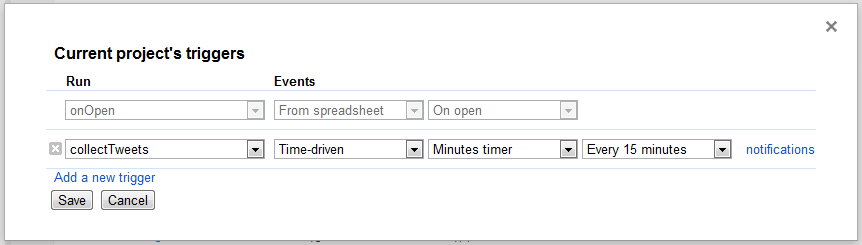
- The collection can manually be trigger by TAGS > Run Now! (Results appear on the ‘Archive’ Sheet).
Advanced setup/use
- Open the TAGS Google Spreadsheet and make a copy
- Register for an API key with Twitter at http://dev.twitter.com/apps/new. In the form these are the important bits:
- Application Website = anything you like
- Application Type = Browser
- Callback URL = https://spreadsheets.google.com/macros
- Default Access type = Read-only
- Once finished filling in the form and accepting Twitter’s terms and conditions you’ll see a summary page which includes a Consumer Key and Consumer Secret
- Back in the Google Spreadsheet select Twitter > API Authentication (you’ll need to select this option twice, the first time to authorise read/write access to the spreadsheet). Paste in your Consumer Key and Secret from the previous step and click ‘Save’ (if the Twitter menu is not visible click on the blue button to show it)
- From the spreadsheet select Tools > Script Editor … and then Run > authenticate and Authorize the script with Twitter using your Twitter account
- While still in the Script Editor window select Triggers > Current script’s triggers… and Add a new trigger. Select to run ‘collectTweets’ as a ‘Time-driven’ choosing a time period that suits your search (I usually collect 1500 tweets once a day, but increase to hourly during busy periods eg during a conference). Click ‘Save’
- Now close the Script Editor window. Back in the main spreadsheet on the Readme/Settings sheetenter the following settings (starting in cell B9):
- Who are you = any web address that identifies you or your event
- Search term = what you are looking for eg #cetis12
- Period = default
- No. results = 1500 (this is the maximum twitter allows)
- Continuous/paged = continuous
- Click TAGS > Run Now! to check you are collecting results into a ‘Archive’ sheet
- To allow the results to be visualised from the spreadsheet select File > Publish to the web…You can choose to Publish All sheets or just the Archive sheet. Make sure Automatically republish when changes are made is ticked and click Start publishing
Creating a public interactive visualisation of the archived conversation
- Copy the url of the published spreadsheet
- Visit http://hawksey.info/tagsexplorer and paste your spreadsheet url in the box, then click‘get sheet names’
- When it loads the sheet names leave it on the default ‘Archive’ and click ‘go’
- You now have a visualisation of your spreadsheet archive (click on nodes to delve deeper)
- To share the visualisation at the top right-click ‘link for this’ which is a permanent link (as your archive grows and the spreadsheet is republished this visualisation will automatically grow)
Quick way to display archive community (Links) data
- Run TAGS Advanced menu options (1-3)
- Copy the url of the published spreadsheet
- Visit http://hawksey.info/edgesexplorer and paste your spreadsheet url in the box, then click‘get sheet names’
- When it loads the sheet names leave it on the default ‘Links’ and click ‘go’

Collect/backup tweets in a Google Spreadsheet [Twitteralytics v2] – MASHe
[…] By Martin Hawksey*** NEW VERSION – I’m keeping this post up for reference. You should get the very latest version TAGS v3 HERE! ***Back in June I hastily threw together Using Google Spreadsheet to automatically monitor Twitter […]
Tom Szekeres (@tomszekeres)
Really nice Martin – although I seem to be getting errors when I start to use advanced operators (e.g. near:”London, UK” within:1000mi) – any thoughts on why this might be?
Martin Hawksey
@Tom ah the Twitter Search API reads location using a geoencode parameter rather than the search term [ref] A quick fix would be to add the geoencode parameter in the getTweets function
Tom Szekeres (@tomszekeres)
Cheers – will give it a try! Out of interest what does TMP stand for?
David Boyle
This is absolutely amazing! Thanks so much. I’m going build daily reporting and analysis based on this for some projects I’m working on. THNAKS!!!!
Gards Flores
When I try to use the template, I get a google docs error.
Have you taken the template down?
Martin Hawksey
Template should still be there – try the rate in gallery link and make a copy from there
A way to archive and display Twitter hashtag chats – MASHe
[…] of ways you can use this data.Archiving the conversationPerhaps not surprisingly it starts with my Google Spreadsheet Template for capturing Twitter searches. I realise that this solution isn’t as straight forward as old services like Twapper Keeper and […]
AT
Is there a way to extract geocoordinates with the tweets? My copy of TAGS has a geo_coordinates column that has come out largely empty.
Martin Hawksey
If a tweet has Geo data it is recorded, problem is that most people don’t include location data which is why the column is mostly empty.
Ben
This was working GREAT until today whereby the test runs and will return data, but when it actually runs it returns a blank sheet. What is going on and how can I fix it?
thanks for this AMAZING template!
Ben…
Ben
Ok after reading more It seems i might be getting rate limited by twitter. So i did the API authentication and now when I run it i get an error of:
Oops
Authorisation is required to perform that action.
Ben…
PS. Authorisation should be Authorization
Martin Hawksey
Hi Ben – the oops authorisation (British spelling 😉 message can mean a couple of things: callback url was entered incorrectly when registering for an API on Twitter, customer secret/key have a typo, and very rarely Google doesn’t record the returned authentication token from twitter (in this scenario try running the authenticate script again, if that doesn’t work you need a fresh copy of the spreadsheet, but you can render the existing API details)
Hope that helps,
Martin
Ben
I had no idea there was a British spelling of that word. how funny.
Ok I got a new copy of the spreadsheet and followed all the instructions. I no longer get the error but I still get a blank page as the results. the test results show info, but no data is returned on the page when I run it.
any ideas? Thanks
Ben
Follow #lis_dream3 online « LIS Research Coalition
[…] other ways to capture the Twitter discussions surrounding the event. We will be trying out the Twitter Archiving Google Spreadsheet (TAGS) tool created by Martin Hawksey. If you have any questions about the archived tweets will be used, […]
Stas
Martin,I have a problem with advanced functions. When I run “Get Followers and Relationships” and “Replace users IDs with Names” everything seems OK except that there’s no header in Nodes spreadsheet, but there’s data. But I get blank Nodes sheet when I run “Fill Twitter user information”.
Of course I autorize script with my Consumer and Consumer secret key.Also in Dashboard there’s no Top Twitters chart.
Am I do something wrong?
Stas
Martin Hawksey
There’s something wrong with copying templates in Google Spreadsheets right now. As the column headings are used to identify where data is written, as you have no headings that’s why it’s blanking the sheet. TAGSv3.1 (which should fix it) is here http://mashe.hawksey.info/2012/01/tags-r/ – should be officially releasing later today
Martin
charlton
HI Martin – I’m Using Tags 3.1. and having two issues. First, I’m trying to add a column (To_User) in the TMP and while I can add it, when I run and return results, the new column/data does not appear. Second (to try to get around that) I tried to use the advance tags tab option to “Replace User Ids with names” and I get the following error message: The coordinates or dimensions of the range are invalid. (line 527). Any ideas?
Martin Hawksey
Hi Charlton – the adding column to the TMP sheet only works if you are using paged results (this is a historic feature) Most people just use continuous which writes the tweets to the Archive sheet. So if you are using continuous collections just add ‘to_user’ to the Archive sheet and it should work. The replace id error message probably appeared if step 1 didn’t finish successfully, Edges should have a pair listing of ids and Vertices should have a list of id and usernames before trying step 2.
Hope this helps (as you see from my blog i’m interested in Twitter analysis and it’s always nice to know what other people are getting up to 😉
Martin
Ben
Ok I got 3.1 and its now collecting tweets in the archive, but not when its set to paged.
Also I have the period set for yesterday, but it pulled today’s tweets. We shall see what it pulls tonight when its set to collect them.
Any more helpful advice?
Ben…
Love this spreadsheet…
Martin Hawksey
Hi Ben – sounds like paged results is broken. It’s a feature from v1 that I don’t use anymore which is why it’s neglected – will have a look if I get a chance but low priority for me. Re yesterday tweets. Twitter API works off GMT so my yesterday might not be the same as your yesterday. Also can be effected by Script Editor project properties (there’s a timezone setting)
Lindsey
Hello-
I am having the same problem that @Ben had. I was successfully using TAGSV3.1 yesterday, now it is giving me the Oops Authorization error. I have opened a new spreadsheet, API authenticated it, and tried a new search, but still the same error. Any thoughts? Thank you!
Martin Hawksey
In the Twitter Dev My application section is your api key still healthy? I’ve had a key suspended in the past
Sarath
Hi Martin,
TAGS V3.1 is not working good. It is not pulling 1500 tweets.Please advise
Thanks
Sarath
Jason Seitz
Hi,
Thanks! This spreadsheet is going to be a lifesaver! It is working quite well, however, I am getting this error:
“The coordinates or dimensions of the range are invalid. (line 527)”
when I try to run the script for replaceIDsWithNames
What am I doing wrong? Also, is it as simple as adding a column for that variable under the Archive page?
Su Butcher
Hi Martin,
I do live blogging and have been using your google docs spreadsheet TAGSV3 spreadsheet to pick up hashtagged tweets – it works very well. For the first time I’m actively using the TAGSExplorer visualiser as well to visualise the conversations that happen at an event on Wednesday.
I just wanted to thank you for sharing these tools which are really helping communicate the value of twitter to non-twitter users in the construction industry (which is my area of operation). Of course I’ve been telling loads of people about how great they are! Anything I can help you with, just give me a shout.
Su
Martin Hawksey
Hi Su – many thanks for the kind words. Whilst I gave up working in the construction industry over a decade ago it still has a fond place in my heart so I’m glad you find the tool useful with what you do. Once you have the data in a spreadsheet there are many more things you can do with it. Stay tuned for updates 😉
Thanks again
Martin
Su Butcher
Oh yes, I’m subscribed!
David Rees (@studgeek)
Very, very cool stuff. Thanks.
Using TAGS at LIS DREaM 3 « The Event Amplifier
[…] DREaM 3 workshop at the British Library. This gave me an opportunity to test Martin Hawksey’s TAGS solution, which makes use of Google Spreadsheets to collect and visualise Twitter hash […]
#vircomm12: a Twitter archive at Danegeld
[…] TAGS v3 – full post by Martin Hawksey on how to archive a hashtag using Google spreadsheets – all hail @mhawksey! […]
Roma, analisi di una nevicata. « Geek ma non solo!
[…] allo script R che ho trovato qui, e al favoloso spreadsheet template di Martin Hawksey ho potuto raccogliere circa 1500 tweet postati tra il 6 e il 13 febbraio e analizzarli creando […]
5 Web Tools for #research — Cameron King
[…] Google Docs. Not just any good doc, this script enables up to archive up to 50,000 tweets of a particular hashtag e.g #media2014 especially with the demise of Twapper Keeper earlier in the year, the ability to create your own independent archive. […]
Visualizing #envhist | Wilko von Hardenberg
[…] These are two visualizations of the users of the #envhist twitter hashtag. The raw data are available as a GoogleDoc, realised thanks to @mhawksey, his continued and effective twitter support and his wonderful Twitter Archiving Google Spreadsheet. […]
Brian E. Bennett (@bennettscience)
Martin,
I hosted a chat last night on Twitter and I was panicking because I couldn’t find a good archive tool to handle the volume of tweets I was expecting on a Mac (Archivist works only on Windows). This template has saved my life and gives so much more information than I was looking for.
Thank you so much for putting this together. It is a fantastic tool and I’m already excited about using it more often in the future.
-Brian
Martin Hawksey
Hi Brian, Glad the spreadsheet was useful (and as you’ll see from my latest post I’m grateful for the traffic you sent my way 😉
Martin
Kevin Blocksom
Martin,
Let me start by saying this is an outstanding template to use for Twitter archiving.
I have a question that has been brought to my attention from our social media group. After we gather tweets during a Twitter chat, we use this information to disseminate to various groups, but the only problem that we are having with any Twitter tool for analytics is the timezone issue. Because alot of the chats that we do are worldwide, this is an important aspect when it comes to graphing the results to know that it is differentiating and taking the timezones into account.
Is there an easier way to do this in order to allow us to graph those results without having to go through thousands of tweets and doing this conversion by hand.
Thanks
Kevin
Martin Hawksey
Hi Kevin, not entirely sure what your use case is. Do you need to change all the dates in the archive, or does it need to change based on who is looking at the spreadsheet?
Martin
Kevin Blocksom
When it graph’s the results, what about someone that tweeted in the chat at 10am EST and someone tweets at 7am PST. How does that graph? Does it put both of those tweets at the 10am EST or separate and then splits them up based on the time 0900 and 1000 and does not take the time zones into consideration.
Martin Hawksey
Hi Kevin – results from the Twitter API are all stamped with GMT date/times which is used in the dashboard charts so in essence there is no timezone consideration
Hope that clarifies things,
Martin
Twitter-Archive : cherchez et sauvegardez vos hashtags. « Johnny Ramos
[…] Twiter-Archive cette API n’est pas facile à mettre en place mais les resultats sont assez […]
Robin T
Hi Martin
Thanks for the work with this – I’ve been running a sheet for a while, but the one I’ve just set up keeps giving me Apps script: Line 329 Unexpected error: Exception
I’ve been through and checked all the settings.
Thanks in advance
Martin Hawksey
Might be temporary server problems with Google or Twitter. I would try a fresh copy and see if it’s still an issue (also check that if you are using Twitter API authentication that your app hasn’t been suspended)
Martin
Steven
Hi Martin-
This sheet is awesome. Is there a way to collect tweets using a combined feed instead outside of the twitter search? Ideally, I’d like to combine search feeds from yahoo pipes all in one, set a trigger for every 1 hour, and archive as many results from there as possible on a continuous basis. I mention Yahoo pipes because I’m trying to mash all the search feeds together and filter out keywords I don’t want before its outputted in the spreadsheet and archived.
Martin Hawksey
I find twitter feeds from yahoo pipes very unreliable. If your search isn’t too complex you can use operators in the search term field like ‘keyword1 OR keyword2 OR keyword3 -notthisone -notthisone2’. If you still want to use Yahoo pipes not aware of anything out of the box but I’d look at getting the pipe as JSON and handling with Apps Script
Martin
Arno
Hi Martin,
Is it possible to conduct several queries with the same template, or should I use 1 query per template?
I tried one query and several minutes later another one. It seemed that the archive page does not refresh with the new results, but keeps on generating results from the previous query.
Great tool though.
Martin Hawksey
your query can include OR operators (e.g. searchforA OR searchforB) which should work. Manually switching between different search terms won’t work (or you can just have multiple spreadsheets – I think I have over 50 running)
AT
Hi Martin,
I am trying to use the TAGS advanced options and I get this error: “TypeError: Cannot call method “getRange” of undefined. (line 486)”
line 486 on the script is: var REFERER = doc.getSheetByName(“Readme/Settings”).sumSheet.getRange(B80).getValue();
Could you tell what is going wrong?
Martin Hawksey
Not sure why it’s calling cell B80. Original code in the script calls cell B9 for this (the data is used to play nice with the Twitter api)
Raf
Thanks for this script!
It worked nice the first day, but now the timed execution returns an error:
“TypeError: Cannot call method “getSheetByName” of null. (línia 177)”
If I launch it by hand it works fine. At first I tought it was something related with the table name, but it isn’t. Don’t know what’s wrong.
Martin Hawksey
Hi Raf – I occasionally get timeouts but usually work fine on the next trigger. I’d try removing the script trigger and then adding it back again (making sure your using collectTweets)
Raf
Thanks Martin, that did indeed fix the issue.
Automatic translation of TAGS Twitter archives using Google Apps Script ‘Language’ services – MASHe
[…] when dealing with Twitter as the metadata includes ‘iso_language_code’.So I have a solution to archive tweets in a Google Spreadsheet using Google Apps Script (must write more about v4) … ponder, ponder, 5 minutes later by adding: […]
#CiC12 tweets | cradledincaricature
[…] evening I came across this nice little tool which archives tweets. So I thought I’d set it against #CiC12 as the tweets no doubt ramp up […]
#envhist: Social media and community-building in environmental history | Ant, Spider, Bee
[…] last year’s conference of the ESEH, I’ve started to archive #envhist (thanks to @mhawksey’s Twitter Analytics Google Spreadsheet). As to avoid to miss any #ASEH2012 tweet, as has happened unfortunately with the early #envhist […]
MicrobiologyBytes » Blog Archive » #SGMDub Under The Microscope
[…] Network Via the generosity of Martin Hawksey I’ve had a look at some of the conversations which went on in order to make sense of them: […]
Daily Links 03/30/2012 | EduEyeView
[…] Twitter Archiving Google Spreadsheet TAGS v3 – MASHe […]
Moodle Meitheal | eLearning Island
[…] Moot organiser Gavin Henrick has made a spresdsheet available of them (here) that others can now use for Twitter community visualisation. […]
AERA 2012 Summary and “Overview” | CConley.ca
[…] year, rather than using R to pull the AERA tweets I used Martin Hawksey’s Twitter Archiving Google Spreadsheet TAGS v3. It was a straight forward set up that produced some nice summaries and rolling updates. While […]
使用Google Docs备份你的Tweets | 何必呢
[…] 其实Twitter Archiving Google Spreadsheet还有更多高级的功能,大家可以去官网查看。 […]
Tim
Impressive piece of code – looks like it will be very useful. I tried to setup the API authentication – got my key and entered it, but when I try to run I get:
Opps – should get a new ref before getting an old one (line 1012)
Also doesn’t seem any way to get back to the API authentication menu config now to remove the key
Any ideas? Running TAGS v3.1
Best wishes,
Tim
Sam G.
Hi Martin,
I am also having the same issue with API authentification “should get a new ref before getting an old one”.
Can you help me?
Thanks a lot for this impressive work.
Best
Sam
Martin Hawksey
For those getting ‘get a new ref before getting an old one’ errors Google changed the way the code is handled. I’m updated the spreadsheet to fix this. Old copies should continue working if already authenticated. For new archives you should take a fresh copy of the spreadsheet from the link in the most.
Thanks for bringing this to my attention – sorry for the delay in fixing
Martin
Visualizing Tweets from the 2012 OAH/NCPH Annual Meeting — 2012 OAH/NCPH Annual Meeting
[…] tip of the hat to Martin Hawksey and his excellent Twitter Archiving Google Spreadsheet for making this archiving task a breeze! And of course the Library of Congress will have a copy of […]
Twitter Archiving Google Spreadsheet TAGS v3 – JISC CETIS MASHe | Engineering Better Teachers | Scoop.it
[…] To support my research in Twitter community visualisation I’ve updated my Twitter Archiving Google Spreadsheet (TAGS) … […]
Everything You Have Ever Wanted To Know About Twitter Search | Človíčci.cz
[…] Google Docs. Just download this available spreadsheet by Martin […]
5 Steps to Hosting Successful Twitter Chats: Your Ultimate Guide « Buy Facebook Fans,Twitter Followers,YouTube Views,Google Plus Votes
[…] both of the above tasks, Martin Hawksey’s Twitter Archiving Google Spreadsheet is simply invaluable. It may take some time to set up (I described the whole process here) and you […]
#nlsled: amplifying and curating an event at Danegeld
[…] the moment I am trying out Martin Hawksey’s Twitter Archiving Google Spreadsheet (aka TAGS) and TAGS Explorer, which allows you to visualise the archived conversations. A series […]
User feedback to improve Conversions | distilled
[…] using a unique hashtag to make responses easier to collate for analysis. You can use Google Docs to archive the tweets automatically so that you have them in one place for analysis […]
Twitter Archiving Google Spreadsheet | CPD, by George
[…] has been able to successfully set up and use. The author, Martin Hawksey, has even provided some really helpful guides for getting the most out of the template. I’ve used it this week to make an archive of the […]
Petter Östergren
Really great plugging/addon API..
But i have a small problem… Can’t see my things att the “tagsexplorer” : 0AtnDDai279KadDBoQlNTcWNIdURubUVLTkxzcS15cUE
Martin Hawksey
Seems to be publishing something now http://hawksey.info/tagsexplorer/?key=0AtnDDai279KadDBoQlNTcWNIdURubUVLTkxzcS15cUE&sheet=oaw (not sure with compatibility with older browsers)
Petter Östergren
Error
Twitter said: null
Why?
My last thing have start worked.. but after a will it stop collecting tweets so i tried to remake the thing and now its say
Twitter said : NULL
Martin Hawksey
I would check that your twitter api key hasn’t been suspended (accessible from dev.twitter.com)
Jonas K.
Hi Martin,
I really love the app you created!
I have just a small question: Is it possible to block specific users (bots) and retweets from getting into your archive?
Martin Hawksey
if it’s only a couple of users you should be able to add it to the search term using the ‘-‘ operator e.g. #aTag -from:botA -from:botB
-RT might also remove retweets but the danger is it removes anything with ‘RT’ in it
Martin
Archive Your Tweets with IFTTT - ProfHacker - The Chronicle of Higher Education
[…] friends Martin Hawksey and Janine Utell have also created workflows for saving your Tweets: Martin’s system involves a Google Spreadsheet while Janine makes use of TweetLibrary and […]
#heasocsci at Danegeld
[…] chance to give Martin Hawksey’s TAGS and TAGS Explorer a run-out came with #heasocsci, the Higher Education Academy’s social […]
Isle Lights | markbraggins
[…] I set-up a Google spreadsheet which is automatically storing all Tweets which include the #isleGC12 hashtag (up to a maximum of 1500). It also contains a couple of charts with twitter stats. Many thanks to Martin Hawksey for making it so easy to set-up. Full instructions on how to automatically store tweets in a spreadsheet can be found here. […]
Alberto Cottica
Small question: I am trying use the “until:” operator at the end of the research string to retrieve older (but still less old than two weeks) tweets. It does not seem to be working, though. Should I perhaps alter the “period” cell in the settings page? Not sure how to use that…
Sorry for taking up your time, and thanks again for making this great tool
Jakes
Quick question, how do I cope with Drive Spreadsheet size limits. I recently tried to use your amazing spreadsheet to monitor a launch we were have but hit the size limit before to end of the day. Is there anyway around this or what would be your suggestion?
Jakes
Yeah, it might be the name because the emails don’t actually say which sheet it is, on the other hand, from the amount of emails it might be all of them and therefore just the server.
It started on Sunday and I’ve been getting them all week, but for the sake of argument, if I did change a name, how do I fix it, do I reauthenticate or something?
Martin Hawksey
Just change the sheet name back again and it should work without reauthentication
177-366: Not At ISTE 2012 - Interlocked Pieces
[…] even in my absence. I have collected some of the tweets thanks to Martin Hawksey‘s Twitter Archiving Google Spreadsheet TAGS v3. Google spreadsheets do have a limit and I have, for the first time, reached it. Currently the […]
178-366: Hacking Google Spreadsheets - Interlocked Pieces
[…] posted yesterday about Martin Hawksey‘s Twitter Archiving Google Spreadsheet TAGS v3. I spent some time looking around his website and eventually landed on his SlideShare account where […]
meg
How do I add multiple search terms? Ex. I want to search for an @username and a #hashtag. Can I put them both as terms with “OR” inbetween?
Martin Hawksey
Hi Meg – yes AND and OR operators should both work
Victoria
Hi Martin,
Thanks very much for your tool. It is very useful!
I am trying to collect data of three hashtags and I’m joining them by an OR between each of them but it does not seem to be working.
Am I doing something wrong?
Thanks in advance.
Martin Hawksey
using ‘OR’ should work. What’s in your search term cell in the spreadsheet
Victoria
Now it is working properly!
It seems that I was doing something wrong related with the API Authentication.
Thanks for the support.
HEA Annual Conference 2012 – Archive of Tweets & Top Tweeters! | PlanetChemistry's Blog
[…] Martin Hawksey’s excellent twitter archive tool I include here a link to all of the tweets posted using the conference hashtag. Click the image […]
RV
I have the same question as Jakes – what is the suggested procedure when the Spreadsheet reaches its size limit?
The error I receive via email is:
Your script, Copy of TAGS 3.1, has recently failed to finish successfully. A summary of the failure(s) is shown below. To configure the triggers for this script, or change your setting for receiving future failure notifications, click here.
The script is used by the document Twitter TAGS – v3.1.
Details:
Start Function Error Message Trigger End
7/17/12 10:46 AM collectTweets This document has reached the cell per spreadsheet limit. Create a new spreadsheet to continue working, as you may not be able to add any more rows or columns. For more information on size and complexity limits in Google spreadsheets, visit the Google Docs Help Center. (line 206)
Many thanks
Martin Hawksey
You can free up some more room by deleting unnecessary sheets and columns from the archive. If you still need more room Make a copy of you original and then clear all of the archive sheet except the header and 1st row after that. Then just keep on archiving. (I find it best to remerge the archives in Excel)
RV
Good day Marin,
Awesome!! I appreciate your reply – thank you!
Two additional questions:
1. What is the citation or reference for your TwitterTAGS spreadsheet? Would it be: Hawksey, M. (2012). Twitter Archive Google Spreadsheet – TAGS v3.1. http://mashe.hawksey.info/2012/01/twitter-archive-tagsv3/
2. Could point me in the direction of a way to search, collect, and archive (i.e., something like TwitterTAGS) that can be used for Google Scholar. If my question is not clear – please let me know.
Many thanks,
RV
Martin Hawksey
Depends on what citation system you are using. An example of a citation to some related work is in this publication.
Not aware of anything that can archive/scrape Google Scholar (not sure there is an official API, Mendeley might be a better playground – e.g. http://readermeter.org)
RV
I usually use APA 6th Ed. – however, as long as I have the basic information (i.e., name, year, title, URL, etc.) then I can cite your work and give you credit for TwitterTAGS in a manuscript.
I’ve conducted several searches for a application that can archive/scrape Google Scholar data based on a search term and so far, no luck. Thank you for link to ReaderMeter.org!
Your work is AWESOME – thank you for assisting researchers!
Best
RV
Free Tools to Archive Twitter Search results : Best Free Tools and Resources
[…] To use Google Docs, it will be a little more complicated. First, you have to set up Twitter Archive. […]
Archive of #dh2012 Tweets « SOCIAL NETWORK ANALYSIS & SEMANTIC NETWORK ANALYSIS
[…] (updates every hour) that seems more comprehensive and also using Martin Hawksey’s great tutorial for creating a Twitter archive by Shawn W Moore. Rate this:Share […]
Danilo Giambra
Hi, Martin.
Thank you so much for this amazing research tool. I will definitely use it for my research. I’d like to ask you if there is anything similar that could retrieve for example Facebook public posts, as well. Also, advanced functions don’t seem to work with all searches and I don’t understand why. Although I can collect the tweets, when I run GetFriendFollowerRelationships command I get the following message:
Oops
The coordinates or dimensions of the range are invalid. (line 511).
And then, of course, also the other functions won’t work either. What I don’t understand is why it works for some searches and not for others. Does it have anything to do with the fact I am searching for Japanese keywords?
Thank you again for your work, that’s great!
Stephen
All I can say is you are Awesome.
Stephen
Is there a way to archive the old tweets? all tweets too?
Martin Hawksey
Currently Twitter only make the last 7 days of data available. If you know what you are looking for you can set up the script to continuously collect results. If you are looking for more/older data then check out datasift.com (they are one of Twitter ‘s official data resellers)
Thanks
Martin
Rajagopalan C
Hi Martin,
Awesome stuff you are doing. keep up the good work.
Quick question on archiving Facebook Page posts + comments. Plus facebook public posts and comments. Is there any utility that can help us do this?
Martin Hawksey
Not aware of an easy way but http://thinkupapp.com/#features has facebook integration
Twitter in der Wissenschaft: Ein Leitfaden für Historiker/innen | Digital Humanities am DHIP
[…] Anleitung, wie man ein Twitterarchiv (z.B. für eine Tagung) mit TAGS anlegt, gibt es in diesem Tutorial von Martin Hawksey. Fortgeschrittene Nutzer/innen können sich damit auch an die Visualisierung von […]
Sheila’s work blog » Analytics and #moocmooc
[…] of Martins' most useful items in his bag of tricks is his hashtag twitter archive. By using his template, you can create an archive in google docs which stores tweets and […]
Dani
This is precisely what I was looking for! I have a pie-in-the-sky plan to feed the links from my tweets into the bit.ly API to automatically collect click data, and step one is getting a spreadsheet of our tweets.
I am, however, getting an error in line 1085 when I try to run the authenticate function. I thought it might be the missing s in the http part of the link to the Twitter API, but that doesn’t seem to be it. (Looks like it has all of the necessary }s, )s, etc.) Any ideas?
Thank you again for all of your hard work, and for making this available!
Martin Hawksey
Hi Dani – recollection that might be extra whitespace around key/secret. Open the dialog for entering these and check. [There’s also a v4 of this spreadsheet which we use to monitor referrals by combining Google Analytics data]
Dani
Thanks for the speedy response!
I tried that, and I’m not coming up with anything useful. I’m getting an error in v 4.0, as well, on line 376.
My programming teacher told me I had code gremlins back in college, and I think she might have been on to something.
UPDATE: It did, however, run perfectly when I removed the // in front of the commented-out code in line 105 (in the authenticate function). I can’t explain why, exactly, but I’ll take it!
Jakes
Hi, quick question, I suddenly get these errors on all my TAGS spreadsheets every time the triggers run:
collectTweets TypeError: Cannot call method “getSheetByName” of null.
Any suggestions?
Martin Hawksey
Not sure why this would suddenly start happening, unless you changed the name of one of the sheets. Might be a temporary issue on google’s servers
Stephen
Having problem too, line 1012
Start Function Error Message Trigger End
8/20/12 8:54 PM collectTweets Data storage error (line 1012) time-based 8/20/12 8:56 PM
8/20/12 9:00 PM collectTweets Data storage error (line 1012) time-based 8/20/12 9:02 PM
Martin Hawksey
how many tweets are in your archive?
Stephen
Line 329 Address unavailable: http://search.twitter.com/search.json?q=yuorek&rpp=100&page=1&result_type=recent&include_entities=true&with_twitter_user_id=true&since_id=238463212733988866Exception
Martin Hawksey
Okay something has changed in apps script I’ve updated the template but to get you own copies of this working again open the spreadsheet, open Tools > Script editor and change lines 321-325 from
if (typeof languageCode != "undefined") {if (languageCode.length > 0) {
URL = URL + "&lang=" + languageCode;
}
}
to
/*if (typeof languageCode != "undefined") {
if (languageCode.length > 0) {
URL = URL + "&lang=" + languageCode;
}
}
*/
Stephen
error says
”try” without ”catch” or ”finally”. (line 356)
Martin Hawksey
think you’ve comment out/deleted an extra }. Full code listing is here https://gist.github.com/3450834 (you could copy and replace your existing code)
Stephen
Line 333 Address unavailable: http://search.twitter.com/search.json?q=yuorek&rpp=5&page=1&result_type=recent&include_entities=true&with_twitter_user_id=trueException
Sorry!
Jonas
Hi Martin,
I occasionally get this error from Google: “collectTweets Service timed out: Spreadsheets time-based”
Usually there was nothing wrong with the archive itself, i.e. until recently where it at first seems to having stopped archiving but it rather seems that it adds blank rows in the archive. I found out about this yesterday and today I’ve got already over 1100 empty rows. But the tweets, it seems, were archived correctly. So my question is: Can I just delete those empty rows or do you have an idea why I get them in the first place?
Once again: Great job, you’ve done there!
Martin Hawksey
Yes you can delete the blank rows. This happens when the script fails during the write process.
Jonas
Thanks so much! I just did that. Weirdly enough, after I deleted the rows I found out that I had several duplicate tweets. Huh. That’s not really a problem though, just wanted to let you know 🙂
Jonas
Hi Martin,
just had a follow-up question: Is there a way to only archive tweets from a special region, seeing that (i.e. language) the archive automatically saves the languages?
Jonas
Hi Martin,
just had a follow-up question: Is there a way to only archive tweets from a special region, seeing that (i.e. language) the archive automatically saves the languages?
(Sorry if this post is double: just got an error page when I tried to submit my comment)
Martin Hawksey
you’ll need to delve into the script editor and add a geocode operator to the getTweets function. See here for how to format geocode
Erwin
Dear Martin,
I’ve used your spreadsheet before with great success, and you make me look very smart for using it, all of which I owe you much gratitude for. Today, however, I don’t feel so smart, as I’m trying to set up the doc with a new search term and I get the following error:
“Line 329 Address unavailable: http://search.twitter.com/search.json?q=pluk%20de%20nacht&rpp=100&page=1&result_type=recent&include_entities=true&with_twitter_user_id=trueException”
After authenticating the API it repeats the same error but in brief: “Line 329 Unexpected error: Exception”
My gratitude expands infinitely for any hints or ideas how this could be solved.
Also, very much wondering if there would be a possible expansion whereby images that are referred to in a tweet could be somehow stored with the original message.
Kind regards,
erwin
Martin Hawksey
Did you make a fresh copy of the original template?
Erwin
Dear Martin, yes – various copies (including from the original template) all give the same error: ”
Line 329 Address unavailable: http://search.twitter.com/search.json?q=pluk%20de%20nacht&rpp=100&page=1&result_type=recent&include_entities=true&with_twitter_user_id=trueException“
Martin Hawksey
Make sure you are running the function collectTweets and not getTweets
First look at analysing threaded Twitter discussions from large archives using NodeXL #moocmooc JISC CETIS MASHe
[…] might we do this? As mentioned in Sheila’s post we’ve been archiving #moocmooc tweets using Twitter Archiving Google Spreadsheet TAGS v3. As well as the tweet text other metadata is recorded including a tweet unique identifier and, […]
Dora
Hi Martin,
Thank you so much for this, I work for a broadcaster and it’s a great way for us to the catch the tweets (which we later use for promos/audience satisfaction).
However there is one show that is extremely popular, both at its premiere and its late-night repeat. So in the morning I’ll only have the tweets from the late-night transmission.
Is there a way to schedule when the script runs? Or to collect the tweets from 9pm-10pm?
Thanks again!
Martin Hawksey
Hi Dora, I’ve struggled in the mast to collect popular TV tags like #bbcqt but it might be possible on less popular shows. Unfortunately there isn’t a straight forward way of doing this, but here is one solution:
schedule.push({start:"08/29/2012 20:00", end:"08/29/2012 22:00"});using your own date/time. Note date/times match the timezone setting in the Script Editor settings (File > Project properties)That should do it (if not let me know)
Martin
function scheduledCollection(){var schedule = [];
// dates/times in mm/dd/yyyy hh:mm - timezone matches settings in File > Project properties
schedule.push({start:"08/29/2012 15:00", end:"08/29/2012 16:00"});
schedule.push({start:"08/29/2012 20:00", end:"08/29/2012 22:00"});
checkCollect(schedule);
}
function checkCollect(schedule){
var now = new Date();
for (i in schedule){
var start = new Date(schedule[i].start);
var end = new Date(schedule[i].end);
if (now > start && now < end){
collectTweets();
}
}
}
Thing 4: Current awareness – Twitter, RSS and Storify | The Library of Babel
[…] is the rather ingenious use of a Google Spreadsheet to export and backup tweets available at http://mashe.hawksey.info/2012/01/twitter-archive-tagsv3/. I have used this sheet a few times to archive conference tweets by putting in a hashtag search. It […]
Google App Script: Scheduling timed triggers JISC CETIS MASHe
[…] on one of my posts someone asked: ‘Is there a way to schedule when the script runs?’. In particular they were interested in […]
Can the Museum Collect Tweets? |
[…] then stumbled across the opensource Twitter Archiving Google Spreadsheet (TAGS) formerly called Twitteralytics which was developed by Martin Hawksey. The template […]
Domestic Violence Tweets, v2.0 | Domestic Violence and the Internet -
[…] but it only lets you download max 500 tweets at a time. Next time I will try out TAGS, which lets you download more tweets by mining hashtags. Then, of course, running them through […]
#libroelectrónico: Visualising an Archive of the eBook Symposium in Mexico « Ernesto Priego
[…] incomplete and I wanted to offer something more precise and quantitative as evidence, so I used Martin Hawksey’s TAGS V 3 to create a Google spreadsheet collecting all tweets tagged with #libroelectrónico. The […]
#libroelectrónico: What Mexico’s eBook Symposium Backchannel Tells Us | 4Humanities
[…] incomplete and I wanted to offer something more precise and quantitative as evidence, so I used Martin Hawksey’s TAGS V 3 to create a Google spreadsheet collecting all tweets tagged with #libroelectrónico. The […]
#libroelectrónico: Lo que nos dicen los tweets sobre el simposio | 4Humanities
[…] así que quise ofrecer evidencia cuantitativa más precisa, así que usé la herramienta llamada TAGS V 3, desarrollada por Martin Hawksey, para crear una base de datos de Google recopilando todos los […]
Tentative steps in the Twitterverse | Every Day is a School Day
[…] this the long way round, but as I said I'm supposed to "be studying" rather than "learning" and the TAGS project looks well techy to explore […]
Joeyanne Libraryanne » Five free methods of archiving tweets from events – which are best?
[…] TAGS (Twitter Archiving Google Spreadsheet) […]
Casey
Hi Martin,
I am wondering what the historical reach of TAGS is. I am working on a dissertation on television finales, and I’d like to be able, for instance, to go back to the Lost finale and collect tweets from that night. Is this possible?
Thanks for creating this excellent and user-friendly tool.
Martin Hawksey
Limitation imposed by Twitter API is last 7 days up to 1500 tweets. So if there was a lot of traffic on your search there’s no easy way to capture data. Configuring the spreadsheet to run during the broadcast means you would have been able to capture a lot more eg capturing up to the last 1500 tweets every 15 minutes
Willem Karssenberg
What a great tool this is!
Only this is that I would like to be able to adjust the time zone.
All tweets now are two hours early (from the Netherlands)
Martin Hawksey
Twitter API returns date/time in GMT. Next version of this spreadsheet will allow tomezones
Martin
Willem Karssenberg
Thanks Martin for your quick response and answer. Would be great!
Willem Karssenberg
When I look at this TAGSExplorer it looks like there are no mentions at all, though I know there were quite a few:
http://hawksey.info/tagsexplorer/?key=0Ai2d5B0yP7tLdG1sZEdVdWoyRFV3QWJZLTZ0dVVVZlE&sheet=oaw
Is there something I should configure more in order to get those mentions?
ds106: Not Fractal nor MOOC, Just ds106 - CogDogBlog
[…] there is more visuals courtesy of Mr Hawksey. His mad genius set up for gathering/analysing twitter data in a Google Spreadsheet has been piling up date since August of this year, and we are just starting to play with the […]
Tweets as Texts | LLCU-606: Reading Digital Texts
[…] http://mashe.hawksey.info/2012/01/twitter-archive-tagsv3/ : This tool allows you to download a google spreadsheet and set your own parameters for collecting tweets. I used this tool in the Summer to archive the twitter backchannel of a conference that I attended. I can’t find a direct way to turn the archive into mineable text, but I could theoretically copy and past all of the tweets into a doc and then delete the image objects. […]
egilaslak
Wow! This is fantastic! And even as a coding novice I was able to steer this juggernaut of code!
One question:
The hashtag I’m tracking was launched this friday, and I’ve been able to collect 1 500 tweets from both friday and saturday. But I believe there were more than 1 500 tweets that were tweeted that day. As Twitter has a cap of 1 500 for each search – is there any way to narrow the search down to say – every hour of the day for this friday and saturday?
Martin Hawksey
Retrospectively it’s not possible, the best way is to setup a script trigger and run every 15 minutes before the event starts
Any Questions? Filtering a Twitter hashtag community for questions and responses [situational awareness] #CFHE12 JISC CETIS MASHe
[…] through the Basic and Advanced setup used in the TAGS v3.1 (you need to authenticate with […]
Viola
Hi Martin,
thanks so much for this tool – I am using it for my linguistics Bachelor thesis.
However, I am having difficulties with the API Authentication (and therefore the daily automatic collection) – it says “Unexpected error: (line 1108” and there it says
;var result = UrlFetchApp.fetch(
“http://api.twitter.com/1/account/verify_credentials.json”,
requestData);
do you have any tip for me? Thanks again!!
Viola
Oh I am sorry it seems that I did use the wrong information for authentication (access token instead of consumer key)…
Viola
Hi Martin,
I’m sorry that I have to post again – may I know how reliable the language categorization is and what it is based on? I found some English tweets in the category “de”. Thanks!
Martin Hawksey
I believe it’s user defined via twitter profile settings (you choose your preferred interface language and twitter assumes you tweet in that language)
Viola
oh I see! that’s important to know, so I guess I can’t assume that everyone sticks to that. Thanks a lot! I’m doing a linguistic analysis (looking for appraisal in English tweets about China)
ds106 is a Complex Universe Full of Stars - CogDogBlog
[…] the twitter action, in July he set up one of his twitter tag archiving spreadsheets for #ds106 (learn more about this tool it automatically updates the archived tweets and generates summary information). (click for full […]
#UPRLKA: Complete tweet archive and related visualisation around Sri Lanka’s UPR review - Groundviews
[…] evaluating a number of options, we settled on Martin Hawskey’s method to use Twitter’s Developer API with Google Spreadsheet to archive every single #UPRLKA tweet. […]
#UPRLKA: ශ්රී ලංකාව පිළිබඳ UPR සමාලෝචනය ආශ්රිත පූර්ණ tweet ලේඛනාගාරය සහ අදාළ දෘශ්ය රූප : Vikalpa
[…] කරන මාටින් හව්ස්කිගේ විධික්රමය[Martin Hawskey’s method] තෝරා ගත්තෙමු. එය යොදා ගැනීම […]
The most comprehensive aggregation and visualisation of #jiscel12 tweets JISC CETIS MASHe
[…] It’s here folks. The most advanced aggregation and visualisation of tweets for the JISC Innovating e-Learning 2012 online conference taking place next week. Over two years ago I started developing a Google Spreadsheet to archive tweets and since not only have I been evolving the code I’ve been creating tools which use the spreadsheet as a data source. It’s pleasing to see these tools being used for a wide range of projects from citizen journalism, to a long list of academics, students and community groups, and even TV broadcasters. […]
John Mattos
Hi Martin
Thanks so much for this! Totally amazing! I have a couple of questions.
1. if Im tracking a high volume live twitter event, how often can I safely set the script to run to ensure that I get all of the occurances of a given hashtag?
2. My concern with (1) was that if I ran TOO often I might get duplicate results, for instance if someone’s tweet came back in two consecutive queries would they both be added to the spreadsheet?
Thanks!
Martin Hawksey
The issue is usually how quickly the spreadsheet can write the data. Setting up to run every 10 min would be my recommendation. You’ll might also want to delete the summary and dashboard sheets (the formulas can take to long to calculate with a lot of data). Overall this solution isn’t ideal for high volume/velocity searches
John Mattos
I’m not too worried about the time to calculate, honestly, I could stand to update it once every half hour. I was really wondering if its going to append the newest 1500 results with each new run, or replace the previous 1500 results.
Seems like its going to tack them on, which is awesome, I’d definitely want that.
would it enter duplicate tweets though?
Thank you again, this thing is really amazing!
Martin Hawksey
Hi John – by default it’s designed to avoid duplicates, so if it’s set to get 1500 tweets and there are only 100 new ones since the last collection it’ll only insert the new tweets
toni
Hi Martin,
you’ve made a great job!
I’m trying to get the coordinates from the tweets that include some political slogan as a hashtag in order to compare the use of twitter to the real results in an election.
I added the line URL = URL + “&geocode=41,2,500km”; to define the geographical area but the main problem is that most of the tweets aren’t geocoded, so I’d like to get the location as well.
How can I do that?
thank you.
Martin Hawksey
Hi Toni, I haven’t done much work with geocoding, but know the proportion of geo tweets is very low. One way I do it is post process the archive extracting all the profiles of users tweeting the search then get coordinates for where they say they are located and then ads this data to the archive
Nika
Hello!
In the “Vertices” sheet I noticed some columns that remain empty (i.e. betweeness, size etc). Are they placeholders that you intend on filling up in a future version of the tool or is there a way to fill them up currently?
Thanks again for this great tool!
Martin Hawksey
Gets even more advanced I’m afraid, those columns get filled with some R processing http://mashe.hawksey.info/2012/01/tags-r/
Archive and visualisation of tweets from #NHSAlliance2012 | Knowledge 4 Commissioning
[…] of the tweets using the #NHSAlliance2012 hashtag. It auto-updates every hour. Thanks to Martin Hawksey and his TAGSExplorer Share this:TwitterFacebookLike this:LikeBe the first to like this. November 21, 2012 by West […]
Greg McVerry
Martin,
I am showing your tool to literacy researchers at a national conference. I am having trouble with the SNA scripts. I am getting an error message each time they load. Should I delete and restart it. I did delete some unecessary rows in the archive that were from another conference using the same hashtag. Could this have messed me up?
Twitter provides proof of real-time engagement with the public: How to record it JISC CETIS MASHe
[…] is the spreadsheet template I mention. So have you got a strategy for recording impact evidence from […]
Danielle
“The coordinates or dimensions of the range are invalid” I keep getting this response when I try to run the advanced version step #1
Danielle
Also, thank you in advance for you help 🙂 Is there anyway that I can pick out a piece of time to analyze. For instance, I want to analyze an hour long twitter chat on 12/12/12 – is there a way to do that? thanks again!
Martin Hawksey
To do an analysis on a specific time range I make a copy of the spreadsheet with data in and delete the extra tweets from the Archive sheet and then do the analysis
¡Hemos perdido pero nos hemos divertido! | Territorio creativo
[…] Esta acción se ha monitorizado a través de la herramienta: “Twitter Archiving Google Spreadsheet TAGS v3“. […]
1 of 52 Google: Google Script - Interlocked Pieces
[…] first time I really got my hands dirty with Google Script was using Martin Hawksey‘s TAGS for archiving tweets. I used his template to archive a large number of tweets from ISTE12. The […]
Building ETMOOC Twitter Syndication/Archive - CogDogBlog
[…] the meantine, I have set up the amazing tool created by Martin Hawksey to archive tweets in a Google Spreadsheet. His genius is that it updates itself, and there are bult in tools to summarize and generate […]
Analysing Wordpress post velocity and momentum stats with Google Sheets (Spreadsheet) JISC CETIS MASHe
[…] Twitter Archiving Google Spreadsheet TAGS v3 17 COMMENTS January 2012 […]
Play is Not The Opposite of Work: Stanford mediaX 2013 Conference | Tim McCormick
[…] Tweets were collecting using TAGS (Twitter Archiving Google Spreadsheet) v3.2, created by Martin Hawksey, Learning Technology Advisor at Jisc, Centre for Educational […]
5 Steps to Hosting Successful Twitter Chats: Your Ultimate Guide | Blogging Enterprises
[…] both of the above tasks, Martin Hawksey’s Twitter Archiving Google Spreadsheet is simply invaluable. It may take some time to set up (I described the whole process here) and you […]
Jessica
Hi Martin,
Awesome tool! I have a quick question: I’m using this TAGS to archive tweets related to a recent book release, so I’m grabbing tweets with the most relevant hashtag and tweets at the author, but I also want to grab tweets BY the author and I haven’t been able to figure out what language to use to do that in the search term field. Can you help?
Martin Hawksey
Hi Jessica – some more info on search operators in this comment, but basically you could use ‘#yourtag OR to:your_author OR from:your_author’ (without quotes)
Martin
Clare Mackay
Hi Martin, I’m getting an error message ‘script invoked too many times for one day’ when trying to set up a new archive. Why is this/what can I do to overcome this?
Martin Hawksey
You might be hitting quota limits https://developers.google.com/apps-script/quotas
Most of my archives are low volume so I can setup the script to only run once a day which means I can have multiple archives running at the same time
Clare Mackay
Hi, thanks for getting back to me so quickly. I’m archiving tweets pertaining to the hashtag Glasgow2014 for my PhD research so I’ve been setting up a new spreadsheet whenever one reaches its cell limit and was therefore trying to set up a new one. I had also started archives relating to #CWG, Commonwealth Games, Gc2018, and Gold Coast 2018 for future research projects. If I delete some of the latter, should I then be able to set up the new archive for my current research? Or what else can I do to overcome this? I’m not very technologically minded! 🙂
TWITTER RESOURCES | Four Go Further
[…] Twitter Archiving Google Spreadsheet TAGS v3 […]
#elysée50 – Twitter als Erinnerungsraum | Digital Humanities am DHIP
[…] selbst ein Twitterarchiv anlegen möchte (z.B. für eine Tagung), findet in diesem Tutorial von Martin Hawksey eine Anleitung, wie das mit TAGS […]
Kristof
Hi Martin,
thanks! A great tool!
Got it set up good for continuous tracking.
I am tracking a hashtag which is supposed to have generated 25,000 or so tweets within the last 3 days. I guess I am a bit late starting the tracking.
I am having trouble getting a hold of the earlier ones though. I always retrieve the same tweets. Is there a possibility to adjust the time frame in a more granular way?
All the best!
Martin Hawksey
Unfortunately it’s a limitation of the Twitter api. You might want to look at datasift.com to get more data
5 Steps to Hosting Successful Twitter Chats: Your Ultimate Guide « Blogging Enterprise
[…] both of the above tasks, Martin Hawksey’s Twitter Archiving Google Spreadsheet is simply invaluable. It may take some time to set up (I described the whole process here) and you […]
Keep Your Official Twitter Archive Fresh - ProfHacker - The Chronicle of Higher Education
[…] main drawback to the official Twitter archive (versus back-up methods such as ThinkUp or Google Docs) is that your archive can go “stale” and fast. Any tweet after you download your archive […]
Herramientas para la elaboración de la tesis « Alternando TIC, educación y software libre
[…] la conversación (seguidores, seguidos, etc.). También estuve empleando otra herramienta llamada TAGS, diseñada por Martin Hawksey, que además permitía una visualización muy clara de las […]
Erica
Hey Martin!
Thanks for this application, it is a life saver. I do have one question–not sure if you answered it already (I didn’t see it while I was skimming)–for “search term” I had 1 hashtag, changed it to 2 hashtags and then back to the original 1 hashtag. But the results of the 2nd hashtag still appear in the archive–is there a way that I can reset it back to the original search term to show the just results of the 1 hashtag or somehow delete the tweets pulled for the 2nd search term?
Thanks!
Martin Hawksey
Hi Erica – I had a similar problem recently. What I did was scroll through the archive sheet looking for first occurrence of hashtag 2 and then selected all the rows until it went back to hashtag 1 and deleted them
Erica
Perfect, this works–thank you!
Twitter Archiving Google Spreadsheet TAGS v3 Jisc CETIS MASHe | Writing New Media
[…] Twitter Archiving Google Spreadsheet TAGS v3 Jisc CETIS MASHe. […]
5 pasos para desarrollar con éxito un Twitter Chat: La guía definitiva | SocialMediando
[…] ambos objetivos el valor de la hoja de cálculo de Google “Twitter Archiving” de Martin Hawksey’s es simplemente incalculable. Puede llevar algún tiempo ajustarla […]
Twitter and micro-blogging notes on day 2 » PJ Evans
[…] Martin Hawksey’s TAGs for grabbing #feeds into Google […]
Prize to create and expand Brighton & Hove Twitty Council idea | BlueLightCamp
[…] using the open source Twitter Archiving Google Spreadsheet http://mashe.hawksey.info/2012/01/twitter-archive-tagsv3/ which gives us some data to play […]
5 Steps to Hosting Successful Twitter Chats: Your Ultimate Guide | Empower Network + BIG IDEA MASTERMIND Team
[…] both of the above tasks, Martin Hawksey’s Twitter Archiving Google Spreadsheet is simply invaluable. It may take some time to set up (I described the whole process here) and you […]
Twitterarchiv und Reaktionen auf #dhiha5 | Digital Humanities am DHIP
[…] zu archivieren, wurde am 10.4.2013, also einen Tag vor Beginn der Blogparade, ein Twitterarchiv mit TAGS eingerichtet. Dort wurden 1.835 Tweets mit dem Hashtag #dhiha5 gesammelt von insgesamt 296 […]
FredericGSole
Is there any way to insert usernames in a blank sheet and then get all the information about these users? Name, description, location, and so on?
Many thanks,
Frederic
Martin Hawksey
If you fill the column that usually has usernames in the Summary sheet and run the TAGS Advanced menu options you should get the info (you’ll need to unhide the vertices sheet
FredericGSole
Thanks, Martin,
It works great!
Frederic
FredericGSole
Hi, Martin,
Many thanks again for your TAGS! I can’t live without it!
A question: how can I add the name of the user in the sheet? And the location?
Many thanks,
Frederic
FredericGSole
Hi again, Martin,
Last question: is there any way to download only the Archive sheet?
Thanks again,
Frederic
quidiupiu.com
Martin Hawksey
You can File > Download as and then select csv which will pull a single sheet
Jeffery Bonner
Martin,
I am interested in returning the name of a user (note the username) from a twitter archive search. For example, I make a twitter post and hashtag BIOL3210 then using the twitter archiving tool I do a search for keyword #biol3210. I want my name “Jeffery Bonner” (associated with my twitter account) to display in the spreadsheet rather than my twitter username. The purpose is to properly identify students in my class when they make posts related to class. \
Thanks!
Martin Hawksey
Hi – just add a column with user_name and each time it runs it will fill in the person’s name (if set)
Using Viewshare to Visualize Conference Tweets | The Signal: Digital Preservation
[…] part series. The next post will feature Martin Hawksey’s Twitter Archiving Google Spreadsheet (TAGS) and the post after that will focus on the various insights that can be gained from using either […]
Google Analytics API made easy - Google docs Magic Tutorial | distilled
[…] and Google docs is capable of doing pretty much anything (ImportXML, a CMS, SEO tools, and even a Twitter archive), so please do build on […]
5 Steps to Hosting Successful Twitter Chats: Your Ultimate Guide | Social Media Examiner
[…] both of the above tasks, Martin Hawksey’s Twitter Archiving Google Spreadsheet is simply invaluable. It may take some time to set up (I described the whole process here) and you […]
Deepak Raikwar
Hi Martin,
Thanks for this tutorial. Can you please do me a small favor, i am getting error when i try to Run Nwo() function, my error is:
TypeError: Cannot read property “length” from undefined.
What i have to do?
Regards,
Deepak
Martin Hawksey
version 5.0? Usually API misconfig is the issue
Mia Constantine
Hi Martin – Thank you so much for this tool. I was very humbled to find it. I know the max/day is 1500 but how can I download OLD tweets more than 1500 tweets ago?
Martin Hawksey
possible in v 5.0 http://mashe.hawksey.info/2013/03/twitter-throws-a-bone-increased-hits-and-metadata-in-twitter-search-api-1-1/
Archive and visualisation of tweets from #NHSAlliance2012 | Knowledge 4 Commissioning
[…] We’ve put together an archive and visualisation of the tweets using the #NHSAlliance2012 hashtag. It auto-updates every hour. Thanks to Martin Hawksey and his TAGSExplorer […]
5 Steps to Hosting Successful Twitter Chats: Your Ultimate Guide « MindCorp | Newsfeed
[…] both of the above tasks, Martin Hawksey’s Twitter Archiving Google Spreadsheet is simply invaluable. It may take some time to set up (I described the whole process here) and you […]
Twitter Archiving Google Spreadsheet TAGS v3 | MASHe | settlement
[…] See the rest here: Twitter Archiving Google Spreadsheet TAGS v3 | MASHe […]
Twitter Archiving Google Spreadsheet TAGS v3 - ...
[…] Important: Changes to Twitter API Because Twitter are making changes to their API this version of TAGS will stop working in March 2013. TAGSv5.0 is compatible with the new API and you should get it here! For existing TAGS users: What will happen to my existing TAGS sheets? When Twitter turn off the old API (test … […]
carla2198
Silly question – but will the archive continue to add to it, or do I need to export the data and continue to save them every few days? I’m SUPER new to all this and just learning how to use TAGS and understand how it works. Thanks for your help and for creating this!